Why Pickup Times Aren’t Appearing at WooCommerce Checkout
If you use Weekly Menu Manager, check the selected fulfillment method, saved pickup schedule, and available slots before rebuilding your checkout.
Confirm which symptom you have
A missing pickup selector and an empty list of available times are different problems. First note whether the date/time fields are absent, whether dates appear without times, or whether only one expected time is missing. Record the selected fulfillment method and whether the checkout uses WooCommerce blocks or a classic layout.
This guide covers Weekly Menu Manager 1.29.17. It is not a promise that every third-party checkout extension uses the same integration. Use a test order and a mailbox you control while investigating.
1. Use the WooCommerce ordering flow
Open Weekly Menus → Ordering Settings and confirm WooCommerce ordering is selected. Contact / In-Person ordering is intended for phone, text, email, social, or direct orders; it does not create a WooCommerce checkout pickup selector.
Confirm WooCommerce is active and that the customer is using the real cart and checkout. A theme preview or menu page is not enough to demonstrate checkout behavior. If a menu item is mapped to the wrong WooCommerce product, fix the mapping before testing further.
2. Select pickup at checkout
Check that local pickup is available for the customer’s checkout circumstances and select it. Pickup fields can be hidden when the cart is using delivery instead. A store may have a pickup schedule configured while the current checkout is still using a shipping method.
If local pickup itself is missing, investigate the WooCommerce fulfillment configuration first. Changing a time slot cannot repair a pickup method that is not offered. Note which checkout type you use when asking support, because its settings and field integrations can differ.
3. Enable and save the schedule
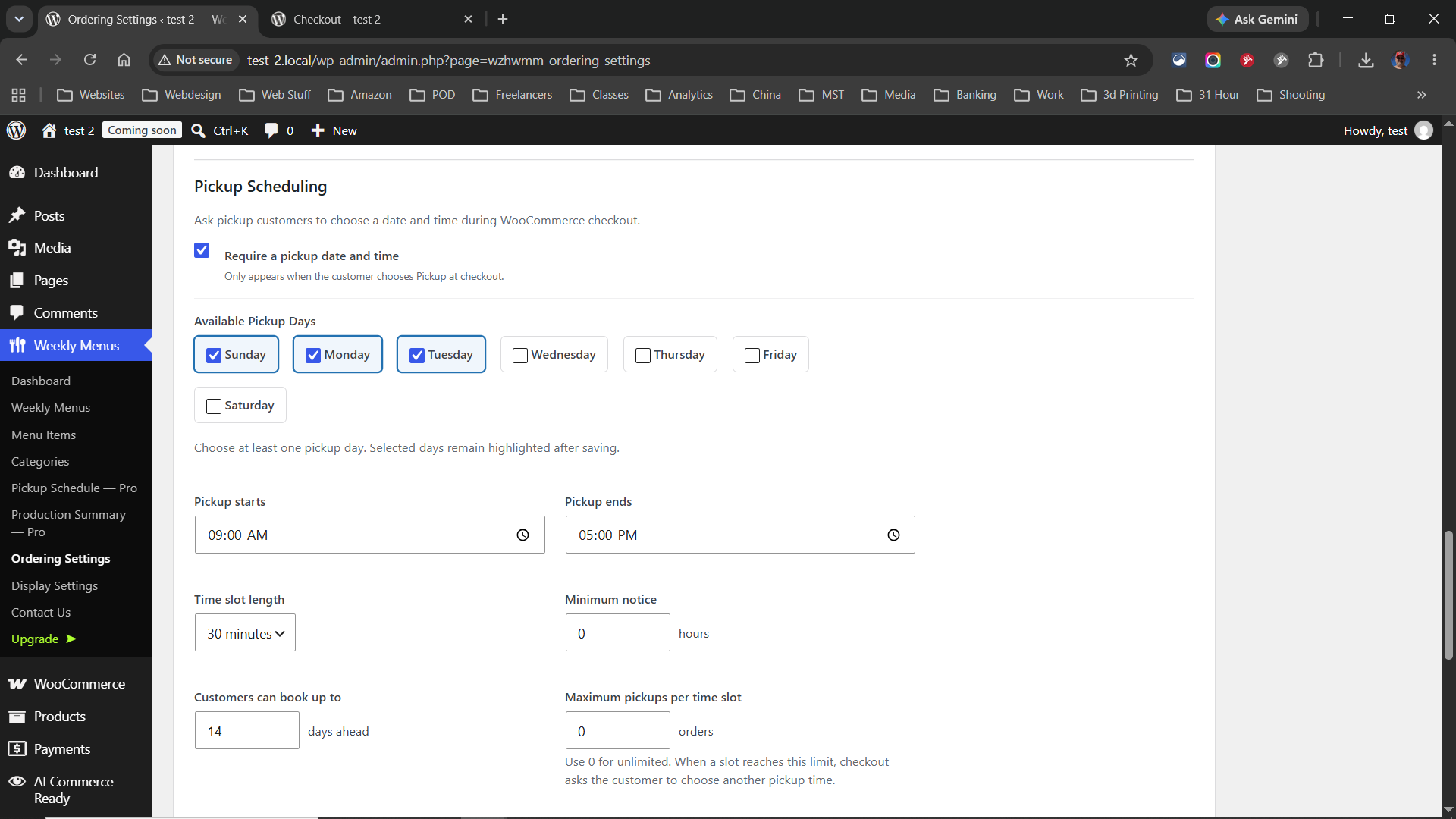
- Open Weekly Menus → Ordering Settings.
- Confirm pickup scheduling is enabled.
- Enable at least one pickup day and configure valid pickup times for that day.
- Save the settings, reopen the screen, and confirm the values remain saved.
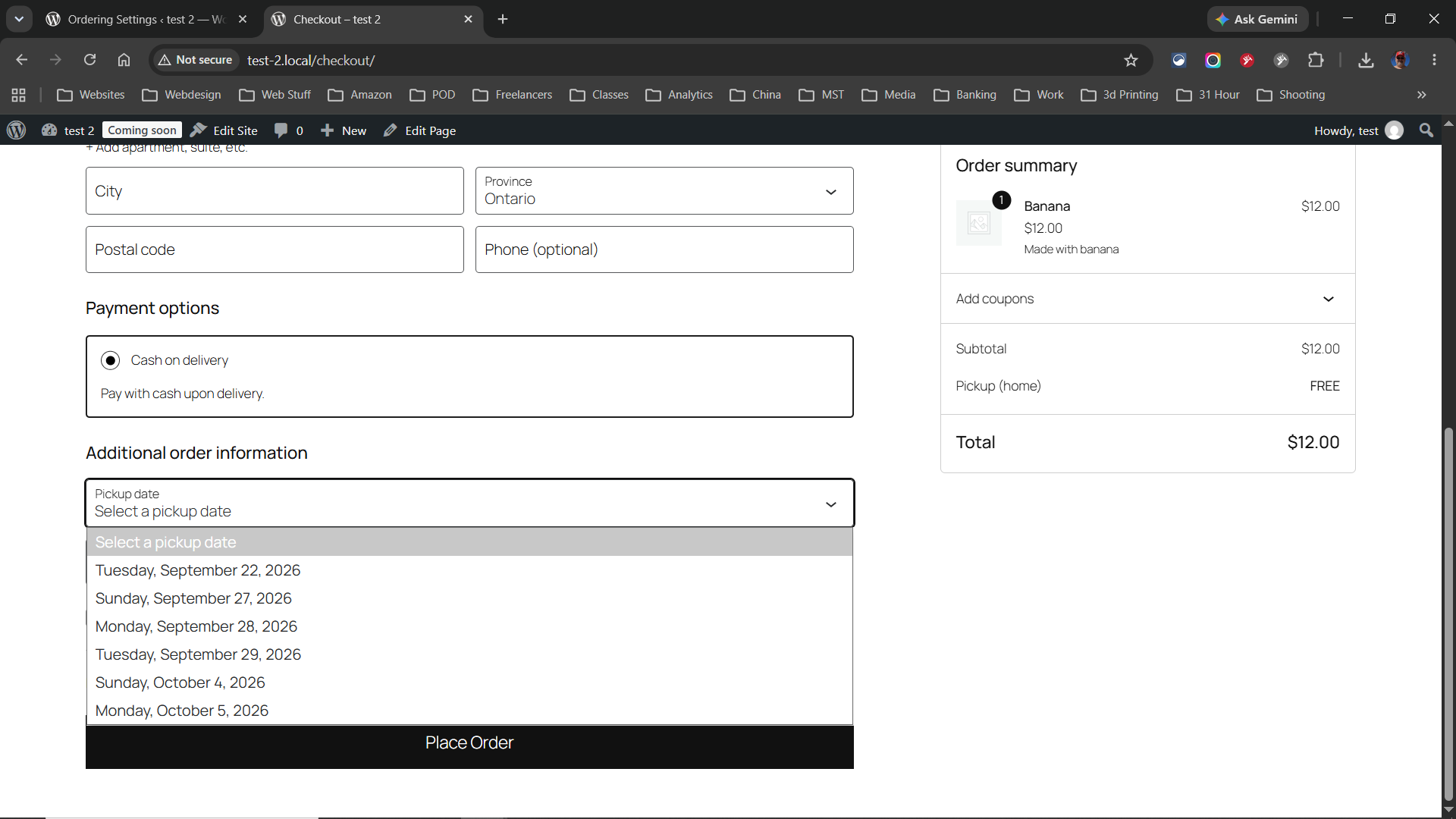
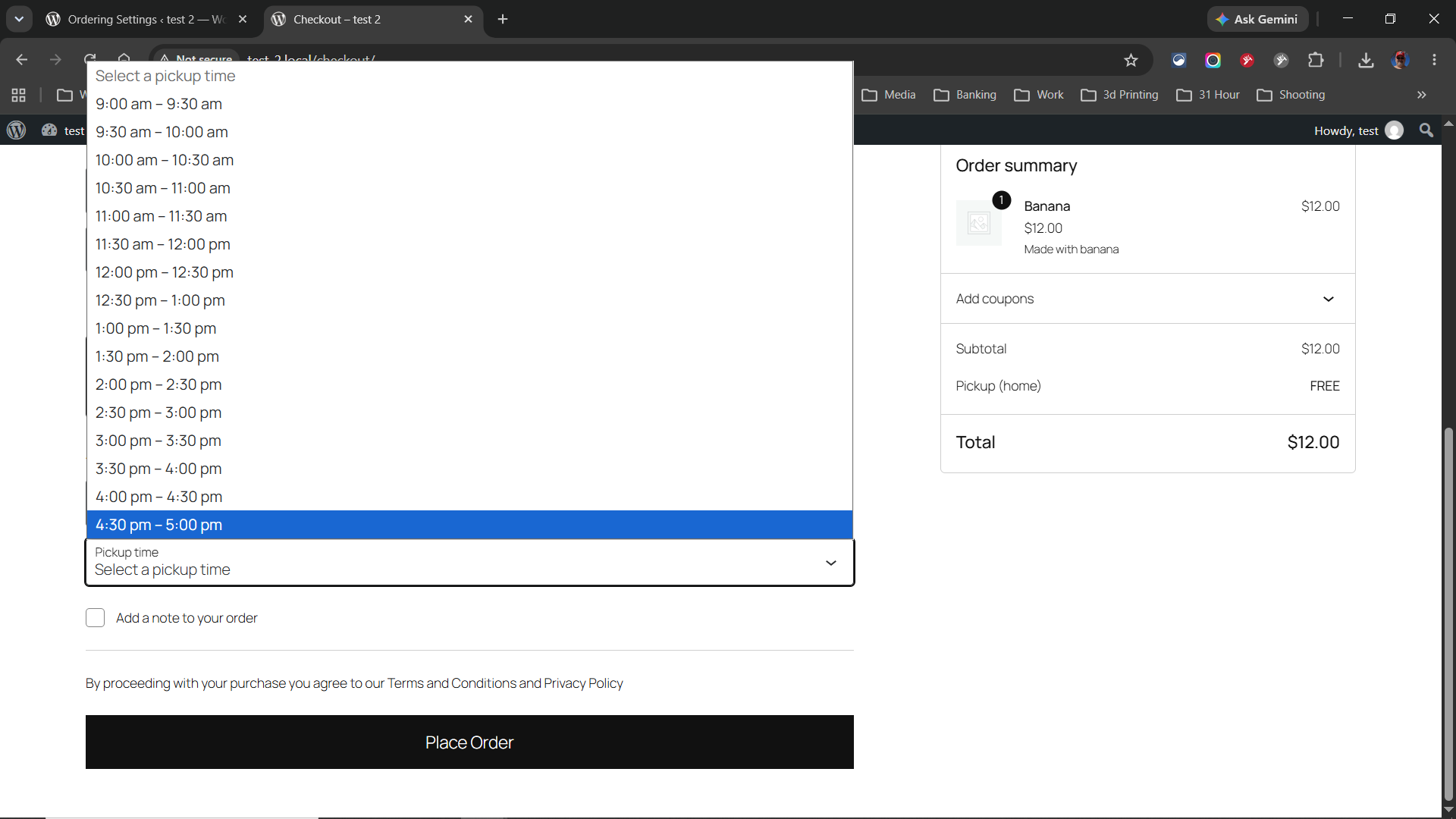
- Return to checkout, select pickup, choose the intended date, and inspect the available times.
Check the selected calendar date against the enabled weekday. A Friday schedule will not provide a Saturday time. A saved time range also needs room for a valid slot; review opening and closing times rather than assuming that any two values create an available choice.
4. Check Free versus Pro restrictions
Free includes basic pickup dates and times. In version 1.29.17, its fixed defaults are 30-minute slots, a 14-day booking window, no additional minimum-notice hours, and no per-slot capacity limit. Advanced slot length, lead-time, booking-window, and capacity controls are Pro features.
For Pro, check whether minimum notice excludes a near-term time, the booking window excludes the date, or capacity has already been reached. A full slot being hidden can be the correct result. Do not increase real customer capacity just to make a test pass.
If you cancel a test order to release capacity, use a controlled order and verify the resulting availability. Cancellation and a payment refund are separate actions; do not assume that changing status returns money.
5. Investigate display or compatibility issues
If the schedule is valid and pickup is selected but fields still do not appear, record WordPress, WooCommerce, and Weekly Menu Manager versions and the checkout type. A custom checkout plugin or theme may change how fields are displayed.
Test suspected conflicts on staging after a backup. Check for stale checkout output or script errors, and ask your host or developer to verify that checkout is not incorrectly cached. Avoid disabling plugins one by one on a busy live checkout.
6. Prove the entire order path
- Use a product and test payment method appropriate for your test environment.
- Select pickup, a valid date, and a valid time.
- Place the test order and inspect its saved pickup details.
- With Pro, verify the expected pickup entry in the management workflow.
- Remove or cancel the test order appropriately and check capacity again where relevant.
A selector appearing is only the first check. The chosen value must also be saved with the order. If it disappears or changes, record the exact steps and escalate the issue.
Get help without another round of questions
Send the exact symptom, versions, Free/Pro plan, checkout type, enabled weekday and time settings, selected date, fulfillment method, and a redacted screenshot. Never include payment information or private customer details.
See Weekly Menu Manager and its complete setup and support guide. For planning the schedule itself, read managing weekly pickup times.