Google Forms can be a perfectly reasonable way to start taking home bakery orders. It is free, familiar, and quick to set up. The problem usually appears later, when order volume grows and the form starts creating more manual work than it saves.
Where Google Forms works well
A form is useful when you have a small number of weekly orders, only a few products, and you are comfortable confirming orders manually.
It is especially attractive when you are testing a new business and do not yet want to set up ecommerce.
Low cost
Fast setup
Easy to change questions
Works without a full website store
Where Google Forms starts to become difficult
Forms do not naturally behave like a live product menu. Customers may submit an item after you meant to stop selling it, and quantities, payments, pickup capacity, and sold-out status often need manual tracking.
You also have to turn form responses into a production list yourself unless you build additional spreadsheets or automation.
Where online ordering helps
A structured checkout can collect products, quantities, customer details, payment, and pickup information in one order record. It can also prevent customers from selecting unavailable products or full pickup slots.
The tradeoff is more setup and a more formal buying experience.
You do not have to choose all or nothing
A home bakery can use a website for the current weekly menu while still accepting orders manually. Later, the same menu can connect to WooCommerce when online checkout becomes worthwhile.
That approach lets the business grow into ecommerce instead of taking on everything on day one.
When it is probably time to move beyond a form
Consider a structured ordering system when you regularly lose time copying orders, confirming payments, tracking pickup times, calculating production totals, or closing products manually.
The right time to upgrade is when software will remove repetitive work, not simply because online checkout looks more professional.
Where Weekly Menu Manager fits
For home bakers who want a middle ground between a simple weekly menu and full WooCommerce checkout, Wizehawk Weekly Menu Manager is designed for small food businesses that publish changing menus, take preorders, and manage pickup without needing a full restaurant system.
If you retype the same product names, descriptions, prices, and pickup details every week, the problem is not that weekly menus take a long time. The problem is that your system treats every week like a brand-new project.
Separate products from menus
A chocolate chip cookie is a product. This week’s menu is a collection of products. Keeping those separate means the product only needs to be entered once.
Reuse categories
Keep categories such as Breads, Cookies, Meals, Sides, or Treat Boxes available for every menu instead of rebuilding the structure.
Duplicate the schedule, not the content
When weeks are similar, start from a previous menu and change only the dates and items that are different.
Use automatic menu dates
The customer should see the active week without you manually changing links or replacing the whole page.
Prepare ahead
Create next week’s menu before this week ends so menu maintenance does not compete with production day.
How to Switch Next Week’s Food Menu Without Rebuilding Your Website
Keep one public menu page and reuse your food items. Schedule what changes each week instead of replacing the page, recreating products, and sending customers a new link.
Separate the item from the weekly offer
A menu item holds reusable information: its name, description, image, price, and category. A weekly menu selects the items offered during a particular period. Keeping those separate means that preparing a new week does not require copying the whole website.
For example, a hypothetical bakery might offer sourdough and cookies this week, then sourdough and cinnamon rolls next week. The sourdough item already exists. The new menu changes the selection and schedule rather than creating a second sourdough product.
Keep one permanent menu link
Use the menu page created or recognized by Weekly Menu Manager’s Dashboard. For an existing WordPress page, add a Shortcode block containing [wizehawk_weekly_menu]. Use that same public link in your navigation, social profile, email, and printed materials.
Before creating another page, check whether a suitable page already contains the shortcode. Version 1.29.17 recognizes existing menu pages to help avoid duplicates. Two pages with different content create unnecessary confusion about which week customers should use.
Prepare next week while the current menu is running
Open Weekly Menus and create the upcoming menu.
Choose existing menu items and categories; add a new reusable item only when the offering is genuinely new.
Arrange the selection in the order customers should see it.
Set the menu start and end dates and the intended order deadline.
Choose what should happen after the order deadline.
Publish the menu and verify its dates and customer-facing behavior.
Do not assume that a saved draft is eligible to appear. A menu needs the appropriate published state and schedule. Review the WordPress site’s timezone when the rollover happens earlier or later than expected.
Choose the deadline behavior deliberately
Weekly Menu Manager provides three choices under After the Order Deadline. Pick the behavior that matches how you sell, rather than using the next-menu option automatically.
Keep menu visible, close ordering: customers can still see the menu, while its ordering buttons are disabled.
Hide this menu: the menu disappears after its deadline.
Show the next published menu: customers move to the next eligible published menu when one is ready.
A next-week draft is not a replacement for a published upcoming menu. Also consider whether you actually want next week’s ordering to open as soon as the current cutoff passes. The end of this week’s ordering and the start of the next offer may be different business decisions.
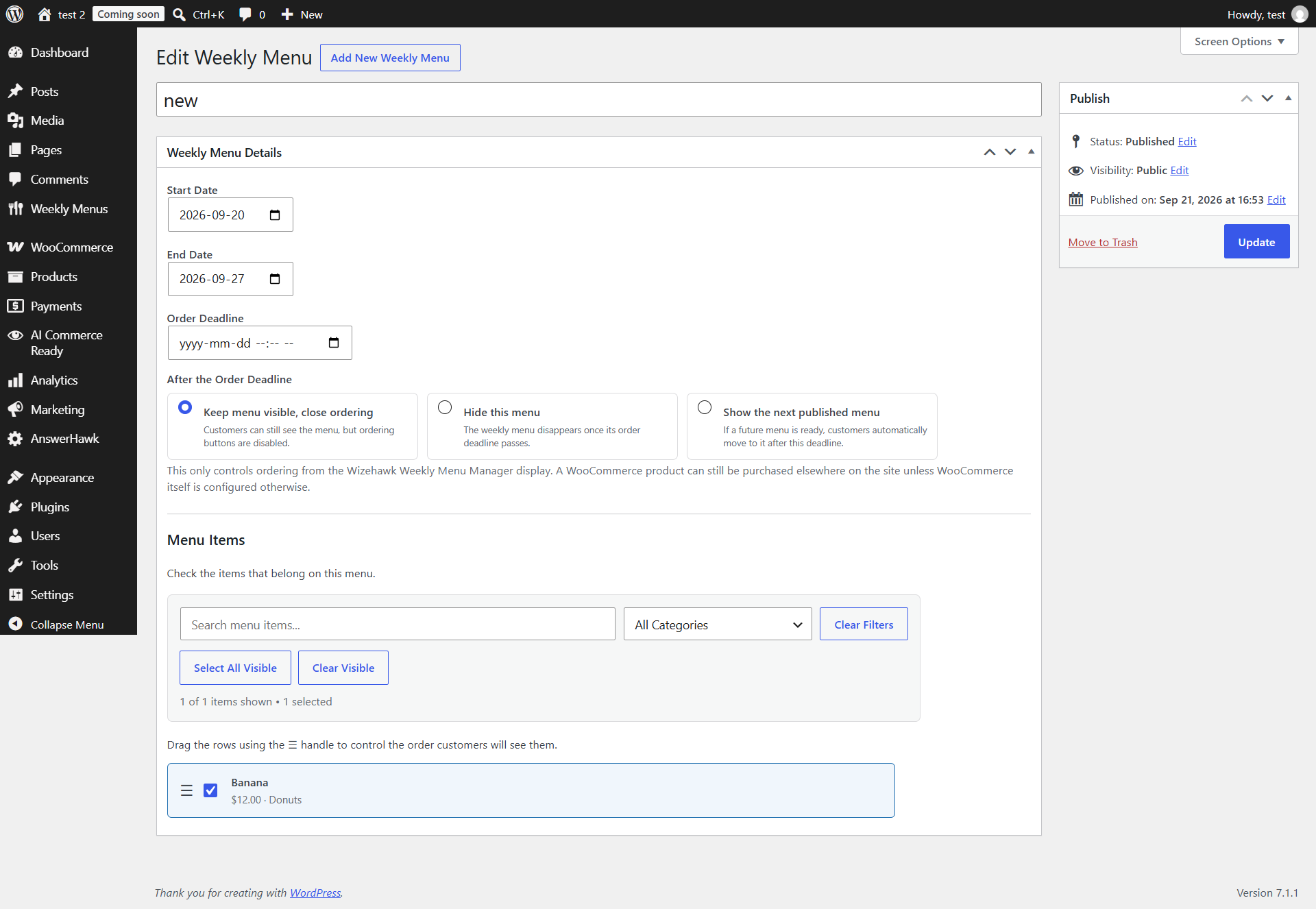
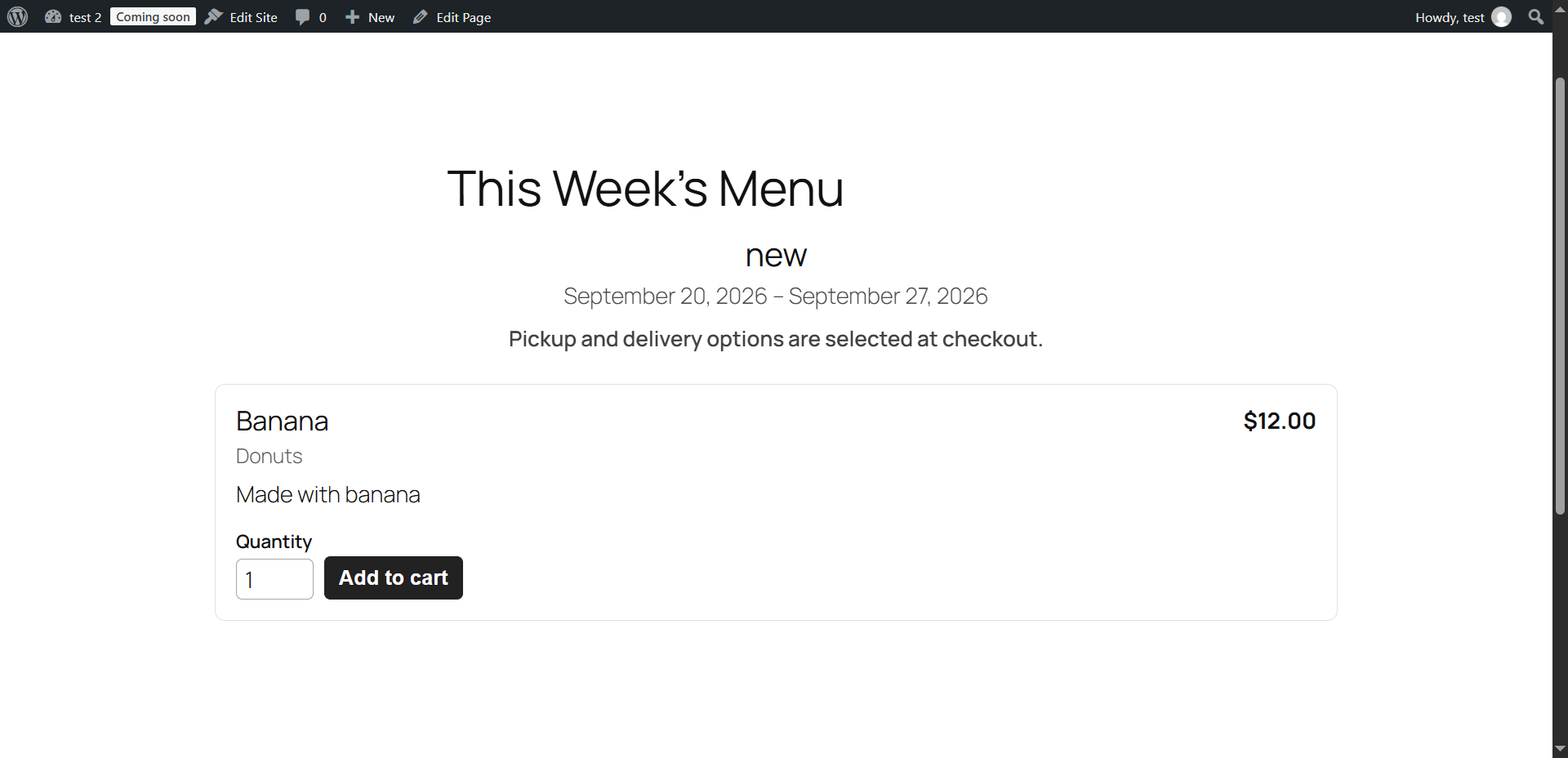
The menu editor shows reusable items, menu dates, and the three deadline behaviors. The deadline is blank in this example; it does not demonstrate an automatic rollover. Select the image to view it full size.A local test menu displays one reusable item with quantity and Add to cart controls. Select the image to view it full size.
Do not confuse the menu cutoff with a store-wide sales block
The deadline controls ordering through the Weekly Menu Manager display. A WooCommerce product may still be purchasable from a direct product page or another part of the store unless WooCommerce is configured otherwise. Check those other paths if your business must stop all sales at the cutoff.
Pickup scheduling is another separate concern. A menu’s displayed dates do not replace your saved pickup days, time slots, capacity, or lead-time rules. Confirm that the available pickup choices match the week you are selling.
Test a rollover before relying on it
Use a staging copy or a controlled test menu rather than altering a live customer cutoff for experimentation. Set up a current menu and a published future menu, choose the intended deadline action, and view the permanent menu page signed out before and after the test boundary.
The expected menu appears on the same URL.
Its title, dates, deadline, and selected items are correct.
The deadline action matches the business decision.
Ordering works through the chosen contact or WooCommerce flow.
If using WooCommerce pickup, the selected date and time are saved on a test order.
If the old menu remains, inspect the current and future menus’ dates, published status, and deadline behavior. Then check whether page or CDN caching is showing an older response. Recreating the whole menu page is rarely a useful first diagnostic step.
Keep next week’s maintenance small
Once the process works, use a short weekly checklist: review reusable item information, build the next selection, check dates and cutoff, publish, and verify the permanent link. Review reused item changes carefully because the same item may appear in more than one menu.
The goal is not to eliminate judgment about what to sell. It is to stop spending that judgment on copying the same website structure every week.
If the weekly menu itself has become repetitive admin work, Wizehawk Weekly Menu Manager is designed for small food businesses that publish changing menus, take preorders, and manage pickup without needing a full restaurant system.
Small food businesses often accept orders wherever customers happen to contact them. That is convenient for the customer, but it can become messy for the owner when orders are spread across several apps.
Keep the menu in one place
Even if orders arrive through several channels, send everyone to the same current menu for products, prices, dates, and deadlines. This reduces conflicting information.
Use one order checklist
Record the same information for every order regardless of where it came from.
Customer name
Contact method
Products and quantities
Pickup date and time
Payment status
Do not rely on unread messages as a task list
Messages can be marked read accidentally, buried by new conversations, or split across devices. Move confirmed orders into a deliberate order list or system.
Confirm the order back to the customer
A short confirmation reduces misunderstandings about quantities, pickup, and payment.
Move toward structured checkout when volume demands it
If manually copying orders becomes one of the biggest parts of your week, that is a good signal that online checkout may now save time.
Where Weekly Menu Manager fits
If you want one website menu while keeping multiple ways for customers to contact or order from you, Wizehawk Weekly Menu Manager is designed for small food businesses that publish changing menus, take preorders, and manage pickup without needing a full restaurant system.
Pickup scheduling becomes important as soon as a home bakery has enough orders that customers start arriving at the same time. A simple schedule protects both your production time and your home.
Offer only the times you can actually support
Do not create pickup options just to appear flexible. Offer the days and hours that fit your production schedule and personal availability.
Choose a slot length
Short slots work when orders are packed and handoff is quick. Longer windows may be easier when customers travel farther or traffic is unpredictable.
Set a maximum per slot
If five customers arriving at once would be disruptive, do not allow ten orders into the same period. Capacity limits keep traffic manageable.
Give customers the time during ordering
It is easier to collect a pickup time when the order is placed than to message every customer afterward to arrange one.
Remove capacity when orders cancel
A cancelled order should free the slot so another customer can use it. This keeps the schedule accurate.
Where Weekly Menu Manager fits
For pickup scheduling that can grow from simple dates and times into capacity-controlled slots, Wizehawk Weekly Menu Manager is designed for small food businesses that publish changing menus, take preorders, and manage pickup without needing a full restaurant system.
A full ecommerce store is not always the best first step for a home bakery. If you sell a small weekly menu and most customers are local, a simple website can organize the buying process without adding unnecessary complexity.
Use a website as the current menu
Create one page where customers can always find the latest products, prices, deadline, and pickup details.
Keep your existing order channels
You can still accept orders by text, email, phone, Instagram, Facebook, or in person. The website gives customers one clear place to see the offer before they contact you.
Add online checkout only when it helps
WooCommerce becomes useful when manual order entry starts taking too much time or customers repeatedly ask to pay online.
Avoid rebuilding your website every week
Save products once and reuse them. The weekly job should be choosing what is available, not redesigning the page.
Keep the process easy for customers
A customer should not need an account or complicated navigation just to see this week’s menu and understand how to order.
Where Weekly Menu Manager fits
If you want to start simple and still have the option to add WooCommerce later, Wizehawk Weekly Menu Manager is designed for small food businesses that publish changing menus, take preorders, and manage pickup without needing a full restaurant system.
WooCommerce is good at handling products, cart, checkout, and payment, but a rotating weekly food menu needs an extra layer of organization so customers see only what is available now.
Keep reusable products in WooCommerce
Do not delete a product just because it is not on this week’s menu. Keeping regular items lets you reuse prices, descriptions, images, and product IDs later.
Separate the product catalog from the weekly offer
Your full product catalog and your current weekly menu are not the same thing. The menu should show only the items available for the active selling period.
Control availability clearly
If an item is unavailable this week, remove it from the current menu or mark it unavailable rather than leaving customers to discover the problem at checkout.
Use menu dates and cutoffs
A rotating menu should tell customers which week it applies to and when ordering closes. Those details are not normally part of a basic WooCommerce product page.
Import instead of duplicating
If you already have products in WooCommerce, reuse them in your weekly menu instead of creating a second copy of every product.
Where Weekly Menu Manager fits
For a WordPress workflow that connects reusable weekly menus with WooCommerce products and checkout, Wizehawk Weekly Menu Manager is designed for small food businesses that publish changing menus, take preorders, and manage pickup without needing a full restaurant system.
Many small food businesses do not need a restaurant POS. If you sell by preorder, make products in batches, and offer scheduled pickup, your workflow is closer to weekly production planning than restaurant service.
Start with the weekly menu
Publish only the products available in the current selling window. This keeps customer choices aligned with what you actually plan to make.
Use a consistent order channel
You can take orders through WooCommerce or through your existing channels. The important part is making sure every order ends up in one organized process.
Track deadlines and pickup separately
The order cutoff tells customers when sales close. Pickup scheduling tells them when to collect. Treat those as separate pieces of information.
Create production totals after the cutoff
Once ordering closes, shift from selling mode to production mode. Total how many of each item must be made.
Add software only when it removes work
A POS is useful when you need live counter sales, inventory, staff permissions, receipts, and restaurant operations. If you do not need those things, a smaller workflow may fit better.
Where Weekly Menu Manager fits
For weekly preorder businesses that want a lighter alternative to restaurant software, Wizehawk Weekly Menu Manager is designed for small food businesses that publish changing menus, take preorders, and manage pickup without needing a full restaurant system.
Local pickup can be simple at low volume, but it becomes stressful when too many customers arrive together or pickup details are unclear. A small amount of structure prevents most of those problems.
Choose specific pickup days
Tie pickup days to your production schedule. If you bake Friday and Saturday, do not offer pickup windows that force you to interrupt prep or packaging unnecessarily.
Use time windows or slots
A broad pickup window may work for ten orders. A busier business may need 15-, 30-, or 60-minute slots to spread customer traffic out.
Set capacity when needed
If your location cannot handle several customers at once, limit how many orders can choose each time slot. This is especially useful for home-based businesses.
Make instructions visible before checkout
Customers should know the pickup date, time, general location, and any important instructions before they complete an order.
Track Ready and Picked Up
A simple status workflow helps you see which orders still need attention and which customers have already collected their order.
Where Weekly Menu Manager fits
For small food businesses that want pickup dates, time slots, capacity controls, and order workflow in WordPress, Wizehawk Weekly Menu Manager is designed for small food businesses that publish changing menus, take preorders, and manage pickup without needing a full restaurant system.
Taking preorders on WordPress does not always require a complicated ecommerce setup. The right method depends on how many orders you receive, how customers already buy from you, and whether you need online payment.
Choose between simple ordering and checkout
If you only receive a small number of orders, phone, text, email, or direct message may be enough. If volume is growing, WooCommerce can reduce manual order entry and give customers a structured checkout process.
Publish a clear preorder window
Show the menu dates and the exact order cutoff. A preorder system works best when customers understand that the offer is available only for a specific period.
Collect the same details every time
Every preorder should capture the products, quantities, customer name, contact details, pickup date or time, and payment status where relevant.
Stop accepting orders after the cutoff
Once production planning begins, late orders can create more work than revenue. If you accept exceptions, do it intentionally rather than leaving the order window unclear.
Turn orders into production totals
Before you start making products, total each item across all valid orders so you know exactly what quantity needs to be produced.
Where Weekly Menu Manager fits
If you want to keep a changing preorder menu on WordPress while using either WooCommerce or your existing ordering process, Wizehawk Weekly Menu Manager is designed for small food businesses that publish changing menus, take preorders, and manage pickup without needing a full restaurant system.
WordPress can handle a weekly food menu well if the menu is treated as a repeatable business workflow rather than a page you manually rewrite every week.
Create a dedicated menu page
Use a page such as “This Week’s Menu” and keep that URL permanent. This becomes the destination you share from social media, email, and local listings.
Store menu items separately from the page
Instead of typing products directly into the page every week, save the products as reusable items. That makes it much faster to bring back regular breads, cookies, meals, or treats.
Build each week from saved items
Choose which products belong in the current week, add dates and an order cutoff, and publish only what customers can actually order now.
Decide how orders will be collected
You can use WooCommerce for cart and checkout, or keep using phone, text, email, social media, or in-person ordering. The menu and the order method do not have to be the same system.
Prepare the next menu before the current one ends
Scheduling the next week in advance helps avoid a blank or outdated menu when you are busy baking, packing, or doing pickups.
Where Weekly Menu Manager fits
For a plugin built specifically around reusable items, weekly schedules, order cutoffs, and pickup workflows, Wizehawk Weekly Menu Manager is designed for small food businesses that publish changing menus, take preorders, and manage pickup without needing a full restaurant system.