How to Find and Fix Missing or Duplicate WooCommerce Product Schema
When product schema is missing or inconsistent, identify what creates it before adding another plugin. Fixing the source is more reliable than stacking a second layer of markup on top.
Understand the problem before choosing a fix
Product schema is structured information describing the product and its offer. It should agree with what a customer can actually buy. A useful investigation asks three questions: is the product described, is the description accurate, and are multiple components giving conflicting answers?
More than one structured-data block is not automatically a defect. A page can legitimately describe a business, breadcrumbs, a product group, and product variants. The warning sign is incompatible descriptions of the same product or offer, not simply a count greater than one.
1. Pick a representative product
Start with one affected published product. Record the URL, whether it is simple or variable, the visible price and currency, and its stock status. Open the page signed out. If the URL is private or returns an error, fix access before treating the missing markup as a product-data problem.
For context, see our product-data checklist. Changing every item in the catalog before identifying a shared template issue wastes time.
2. Compare the local scan with the public page
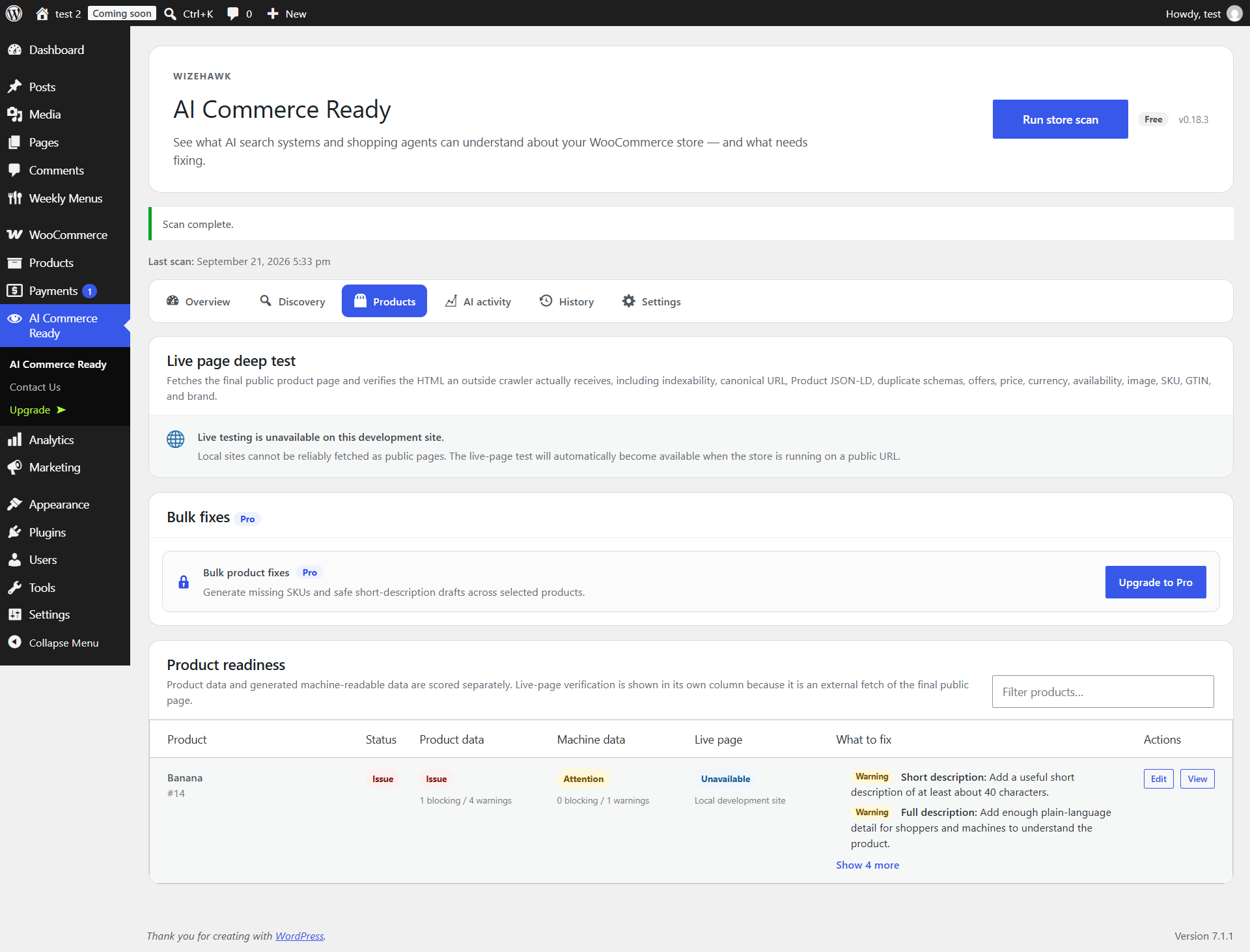
In Store Discovery Audit 0.18.3, run the store scan and open Products. Read the schema finding and dependent fields. If fields say Blocked by schema issue, solve that parent issue first. Filling a brand field will not repair missing Product output.
On a public store, click Test live page for that product. This inspects the fetched page separately from WooCommerce’s generated data. Check its schema, canonical, and indexability results. A local data check can pass while a theme, cached page, or another plugin changes the public output.
For an independent Google-focused check, use the Rich Results Test. Its results concern Google’s supported rich results, not every AI system.
3. Find which component owns the output
- List the components that may generate Product markup: WooCommerce, an SEO plugin, the theme, and any custom snippets or schema plugin.
- Read their relevant settings and documentation. Identify which component is intended to describe the product and its offer.
- On a backup or staging copy, change one suspected conflicting setting at a time. Retest the same page after each change.
- Keep the component that provides correct, complete output for your store. Do not remove all structured data just to eliminate a duplicate warning.
Avoid editing plugin core files. A future update can undo the change, and an untested edit can break the shop. When the source is unclear, collect the conflicting output and ask the responsible developer to identify it.
4. Fix data mismatches at their source
If the price is wrong, check the product and its variations, sale settings, and the component producing the offer. Confirm the currency and actual purchasable option. If availability is wrong, compare WooCommerce inventory settings with the customer-facing page. Clear relevant caches after saving corrections.
If an identifier is absent, use the real identifier when one exists. Optional data marked Not provided is not permission to invent a manufacturer or barcode. Never add fictional review ratings or hide a different offer inside schema.
5. Verify the repair
- Save the source change and clear the relevant page or CDN cache.
- Open the product signed out and confirm that customers still see the correct offer.
- Rerun the store scan and choose Test again for the live result.
- Check a second product that uses the same template. For variable products, also check a representative variation flow.
- Record the setting changed and the date so the issue is easier to investigate if it returns.
Use staging for conflict experiments. If a problem exists only on the public domain, compare its cache and security settings with staging before assuming the plugin behaves differently.
What to send support
Include the product URL, plugin/theme versions, product type, exact result, and expected versus reported value. A cropped result screenshot is useful. Remove private customer information and do not send administrator credentials.
Store Discovery Audit helps locate the issue; it does not guarantee that external platforms will display a product. See the complete guide for scan limits and troubleshooting.
References: Google’s merchant listing documentation, product variant documentation, and structured-data guidelines. Valid markup makes a feature possible; it does not guarantee display.