If you retype the same product names, descriptions, prices, and pickup details every week, the problem is not that weekly menus take a long time. The problem is that your system treats every week like a brand-new project.
Separate products from menus
A chocolate chip cookie is a product. This week’s menu is a collection of products. Keeping those separate means the product only needs to be entered once.
Reuse categories
Keep categories such as Breads, Cookies, Meals, Sides, or Treat Boxes available for every menu instead of rebuilding the structure.
Duplicate the schedule, not the content
When weeks are similar, start from a previous menu and change only the dates and items that are different.
Use automatic menu dates
The customer should see the active week without you manually changing links or replacing the whole page.
Prepare ahead
Create next week’s menu before this week ends so menu maintenance does not compete with production day.
How to Switch Next Week’s Food Menu Without Rebuilding Your Website
Keep one public menu page and reuse your food items. Schedule what changes each week instead of replacing the page, recreating products, and sending customers a new link.
Separate the item from the weekly offer
A menu item holds reusable information: its name, description, image, price, and category. A weekly menu selects the items offered during a particular period. Keeping those separate means that preparing a new week does not require copying the whole website.
For example, a hypothetical bakery might offer sourdough and cookies this week, then sourdough and cinnamon rolls next week. The sourdough item already exists. The new menu changes the selection and schedule rather than creating a second sourdough product.
Keep one permanent menu link
Use the menu page created or recognized by Weekly Menu Manager’s Dashboard. For an existing WordPress page, add a Shortcode block containing [wizehawk_weekly_menu]. Use that same public link in your navigation, social profile, email, and printed materials.
Before creating another page, check whether a suitable page already contains the shortcode. Version 1.29.17 recognizes existing menu pages to help avoid duplicates. Two pages with different content create unnecessary confusion about which week customers should use.
Prepare next week while the current menu is running
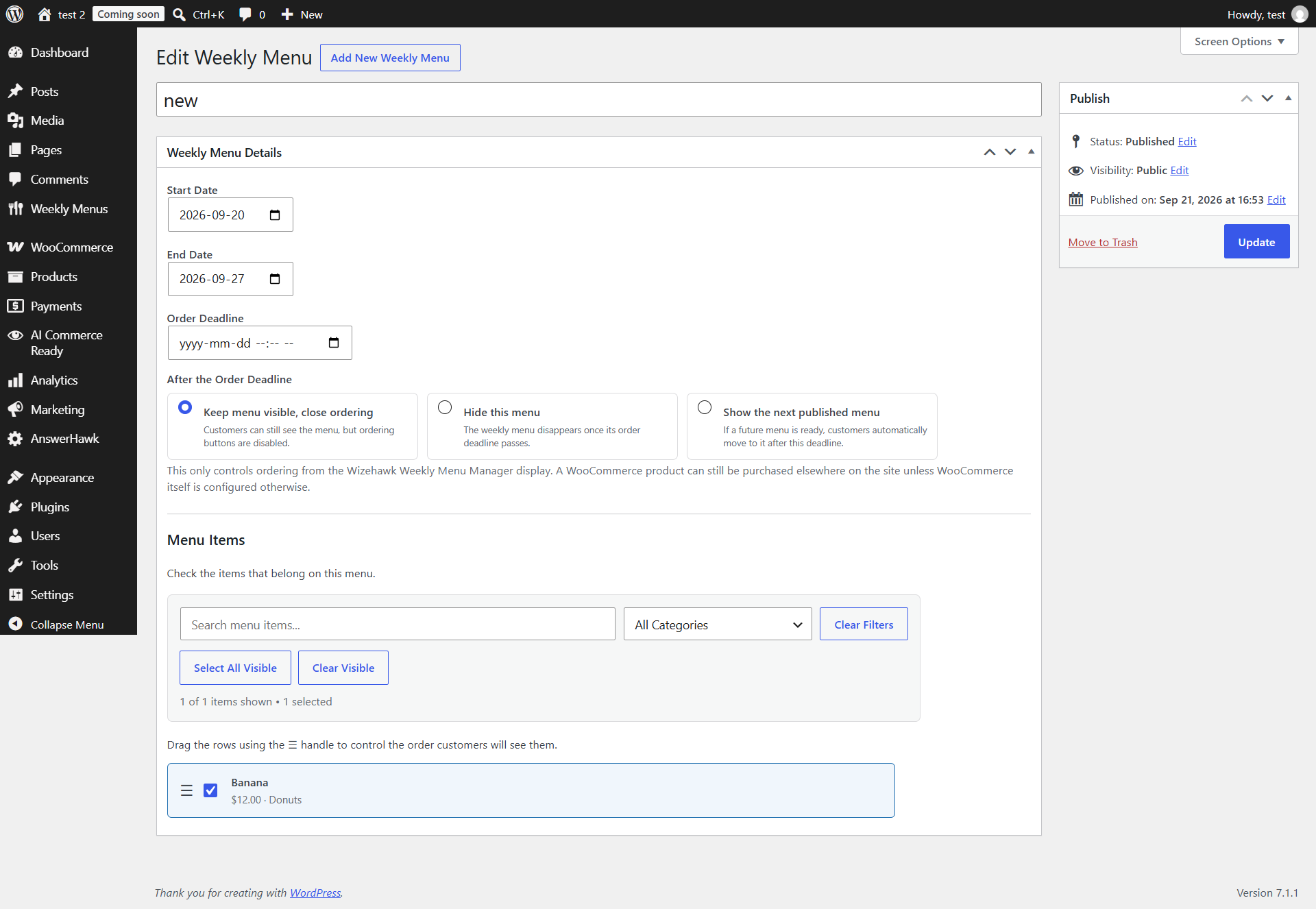
- Open Weekly Menus and create the upcoming menu.
- Choose existing menu items and categories; add a new reusable item only when the offering is genuinely new.
- Arrange the selection in the order customers should see it.
- Set the menu start and end dates and the intended order deadline.
- Choose what should happen after the order deadline.
- Publish the menu and verify its dates and customer-facing behavior.
Do not assume that a saved draft is eligible to appear. A menu needs the appropriate published state and schedule. Review the WordPress site’s timezone when the rollover happens earlier or later than expected.
Choose the deadline behavior deliberately
Weekly Menu Manager provides three choices under After the Order Deadline. Pick the behavior that matches how you sell, rather than using the next-menu option automatically.
- Keep menu visible, close ordering: customers can still see the menu, while its ordering buttons are disabled.
- Hide this menu: the menu disappears after its deadline.
- Show the next published menu: customers move to the next eligible published menu when one is ready.
A next-week draft is not a replacement for a published upcoming menu. Also consider whether you actually want next week’s ordering to open as soon as the current cutoff passes. The end of this week’s ordering and the start of the next offer may be different business decisions.
Do not confuse the menu cutoff with a store-wide sales block
The deadline controls ordering through the Weekly Menu Manager display. A WooCommerce product may still be purchasable from a direct product page or another part of the store unless WooCommerce is configured otherwise. Check those other paths if your business must stop all sales at the cutoff.
Pickup scheduling is another separate concern. A menu’s displayed dates do not replace your saved pickup days, time slots, capacity, or lead-time rules. Confirm that the available pickup choices match the week you are selling.
Test a rollover before relying on it
Use a staging copy or a controlled test menu rather than altering a live customer cutoff for experimentation. Set up a current menu and a published future menu, choose the intended deadline action, and view the permanent menu page signed out before and after the test boundary.
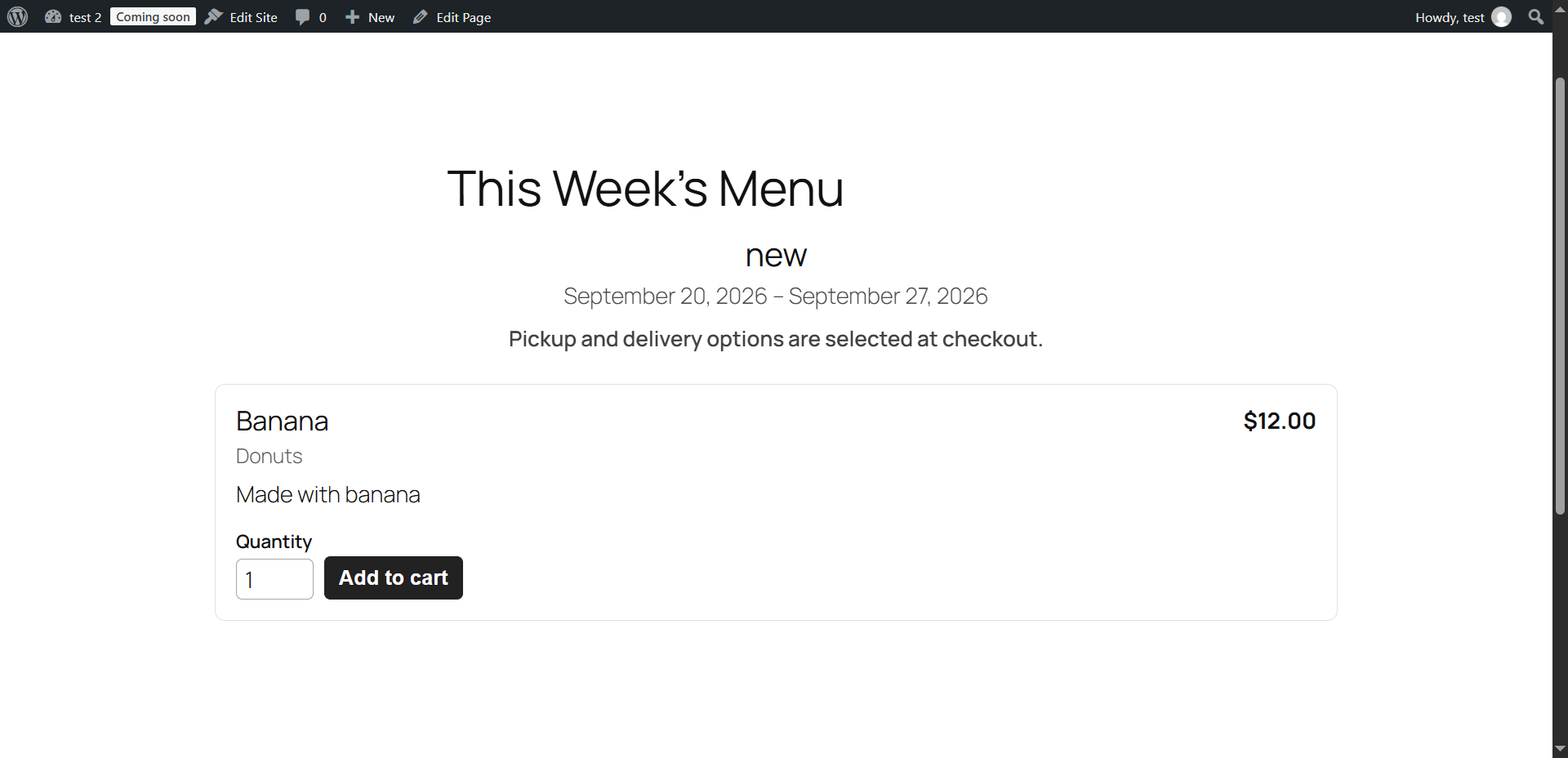
- The expected menu appears on the same URL.
- Its title, dates, deadline, and selected items are correct.
- The deadline action matches the business decision.
- Ordering works through the chosen contact or WooCommerce flow.
- If using WooCommerce pickup, the selected date and time are saved on a test order.
If the old menu remains, inspect the current and future menus’ dates, published status, and deadline behavior. Then check whether page or CDN caching is showing an older response. Recreating the whole menu page is rarely a useful first diagnostic step.
Keep next week’s maintenance small
Once the process works, use a short weekly checklist: review reusable item information, build the next selection, check dates and cutoff, publish, and verify the permanent link. Review reused item changes carefully because the same item may appear in more than one menu.
The goal is not to eliminate judgment about what to sell. It is to stop spending that judgment on copying the same website structure every week.
Use Weekly Menu Manager for the repeating work
Weekly Menu Manager provides reusable items, scheduled menus, and contact or WooCommerce ordering. The workflow above is checked against version 1.29.17. See the complete guide, order-cutoff guide, and pickup troubleshooting article.
Where Weekly Menu Manager fits
If the weekly menu itself has become repetitive admin work, Wizehawk Weekly Menu Manager is designed for small food businesses that publish changing menus, take preorders, and manage pickup without needing a full restaurant system.
Leave a Reply